Character concepts
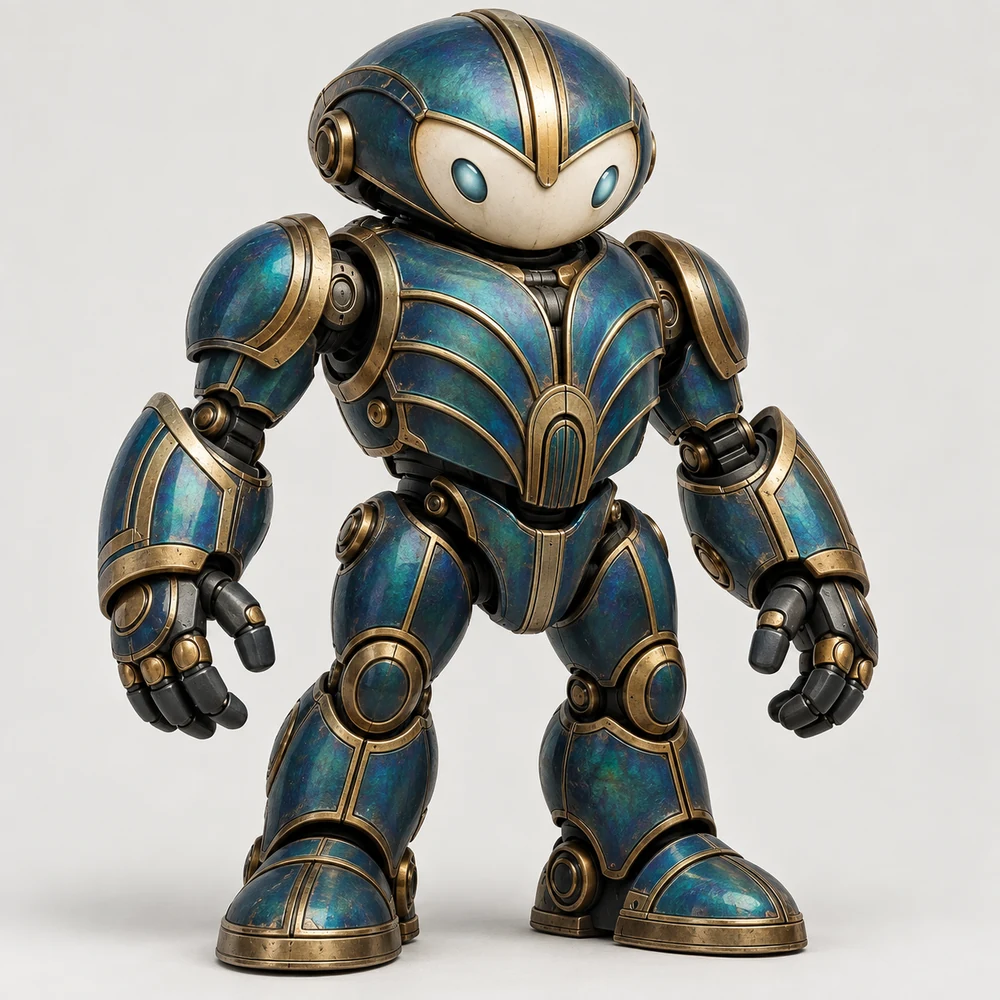
Prepare a coherent character design that you can refine in the conversation and then use as a 3D reference.
Describe the frame you need or add a reference. Set the format, resolution, and options, continue refining the result in the conversation, or send it to the 3D model creation tab.
GPT Image 2.5 Sunburst·Nano Banana Pro
Every step takes place in the Image tab of the same amiodel Studio.
Specify the scene, subject, composition, and important visual details.
Choose the model, aspect ratio, resolution, and available options.
Open the finished result and describe what to change in the next version.
Save the image or use it as input for creating a 3D model.
Aspect ratio, resolution, and quality are separate settings. Studio shows only combinations supported by the selected model and recalculates the cost in advance.
Choosing a model changes the available sizes and settings. Every result remains in the conversation history.
Three quality levels, exact sizes up to 4K, and a choice of opaque or transparent background.
1K, 2K, and 4K tiers with aspect ratios from 1:1 to 21:9.
You do not need to download and upload the finished image again. “Use for 3D” moves your file to the Create tab without exposing an external provider URL in the interface.
How a 3D model is createdPrepare a coherent character design that you can refine in the conversation and then use as a 3D reference.
Establish a visual direction for an object, prop, or collectible figure before modeling.
Set up a vertical, square, or horizontal frame for a specific platform.
Add one image and describe the change while keeping a clear version history in the conversation.
Open the Image tab, describe the frame, and choose a model and settings. Before submission, Studio shows the resolution and token cost of the operation.
Yes. Open the result, choose Edit, and describe the required change. The new version is saved in the same conversation together with the operation settings.
Yes. The current interface accepts one PNG or JPG reference up to 8 MB and attaches it to that specific request.
The Image tab includes GPT Image 2.5 Sunburst and Nano Banana Pro. Available settings change with the selected model.
Studio treats aspect ratio and resolution as separate settings. Supported combinations appear after you select a model, from square and portrait frames to the wide 21:9 format.
Click “Use for 3D” on a finished result. Studio moves the image you own to the Create tab without requiring another manual upload.
Start with a text description or add your own reference, then keep working with the result in one Studio.